
Why Descriptions Can Overlap
Persona descriptions are generated automatically by the platform. Each one is a narrative summary of the most statistically representative profile within that segment, not a detailed breakdown of every data point.
If your overall survey sample skews toward a particular demographic, for example a younger respondent pool, then the dominant profile across several segments may share similar characteristics. The description reflects that dominant profile, even when the underlying segments are meaningfully different from one another.
Similar descriptions do not mean similar segments. They mean the dominant profile in each segment shares something in common.
Where To Find The Real Segment Definition
The actual definition of each segment lives in the Criteria panel, located in the Persona Recap column on the right side of the persona screen.
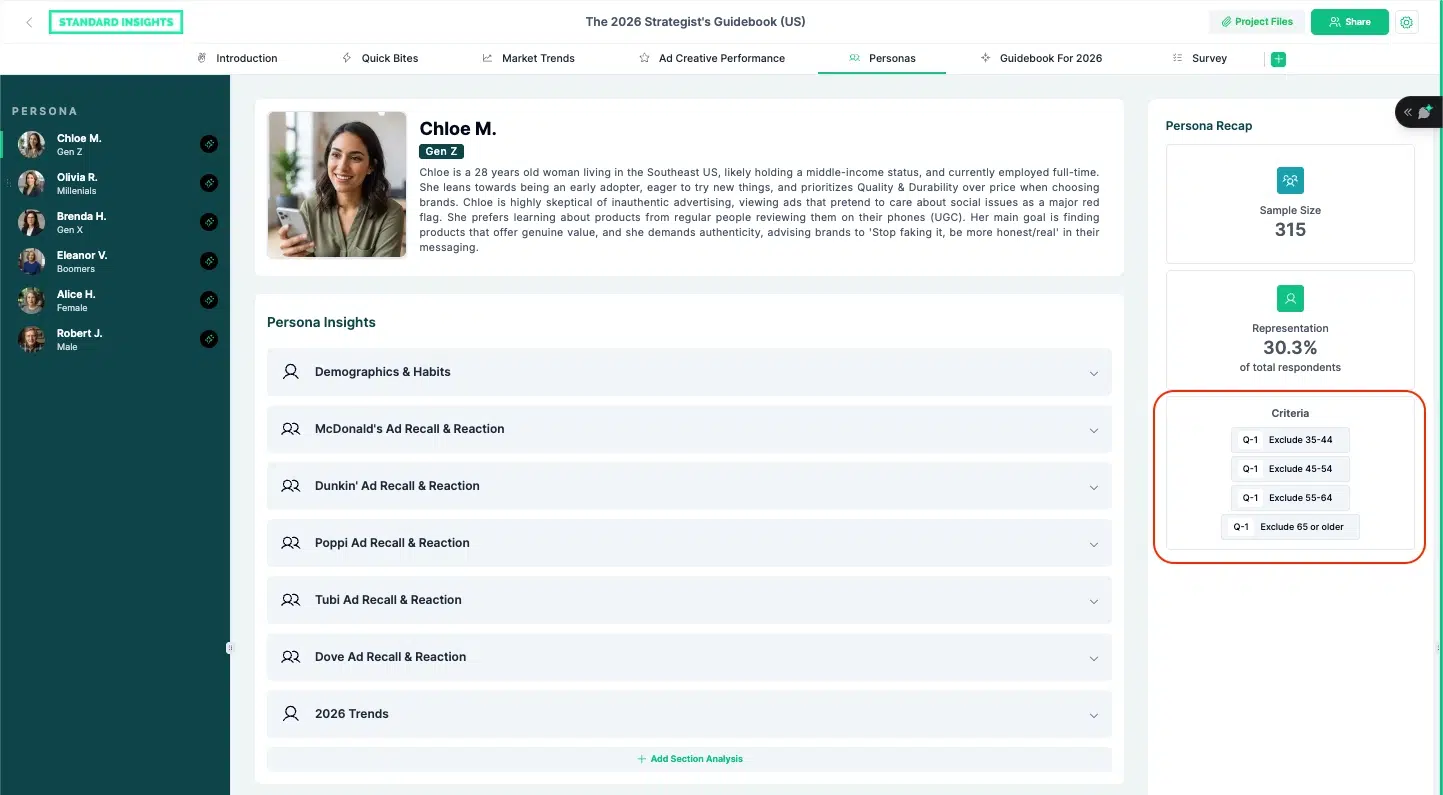
The Criteria panel shows the exact question-level rules used to build the segment, for example which answer groups were included or excluded for each question. This is the source of truth for what defines a persona. Use it, not the description text, to understand where one segment ends and another begins.
How To Check Your Segments Are Distinct
Cross-reference the Criteria panel rules with the Sample Size and Representation figures also shown in the Persona Recap column. Different inclusion and exclusion rules combined with different sample sizes and representation percentages confirm that your segments are genuinely distinct, even if their descriptions read similarly.
How To Edit A Description
If a description is misleading or does not reflect how you want to present the persona, you can edit it. Click the pencil/edit icon at the top right of the persona card.
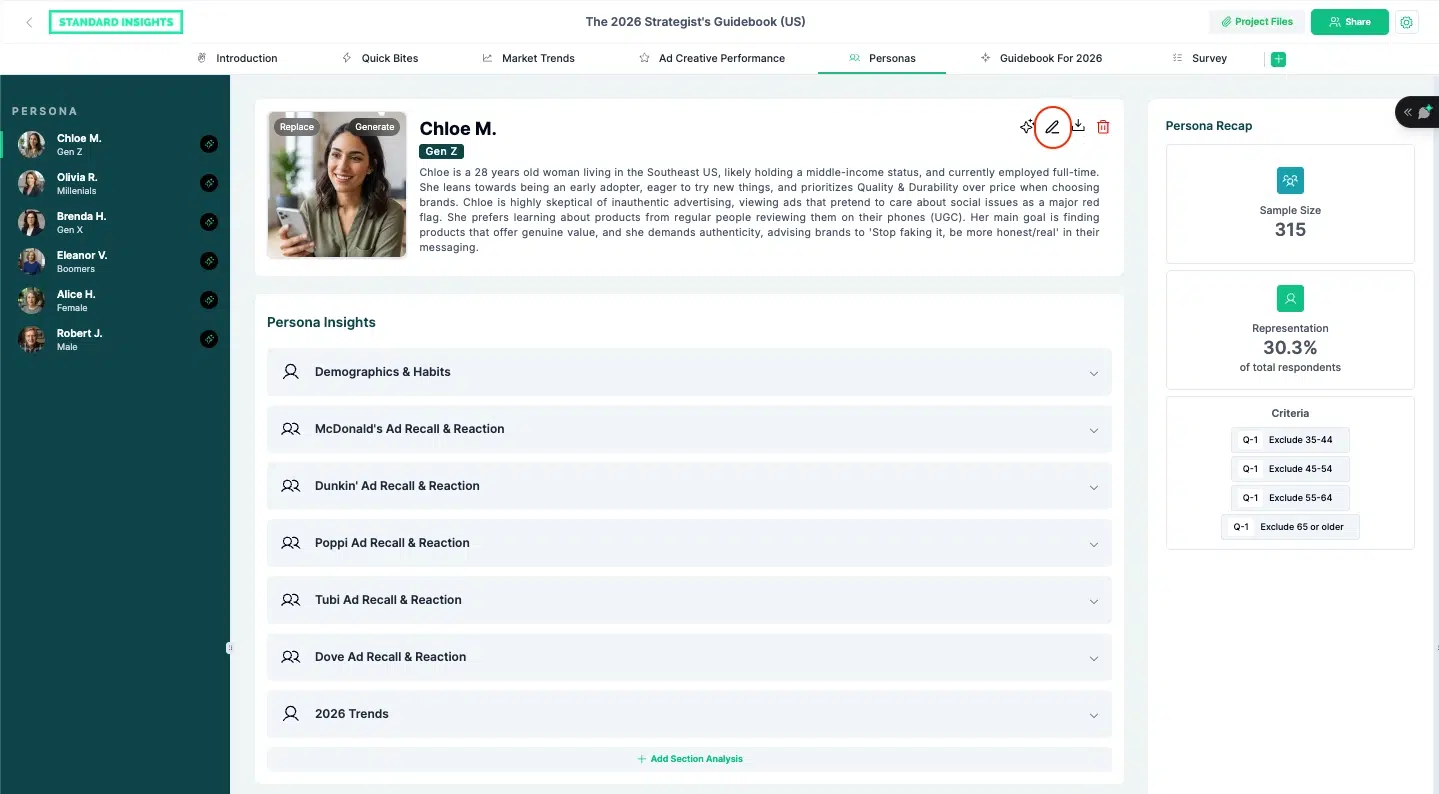
The editor changes the description text only. It does not alter the underlying segment criteria in any way. Your segment logic remains exactly as originally defined.
Note: the edit icon is available to all client users working within the workspace. If you are accessing the report via a shared link as a viewer, you will not see the icon. Editing is not available in viewer access.